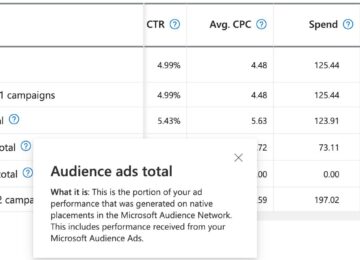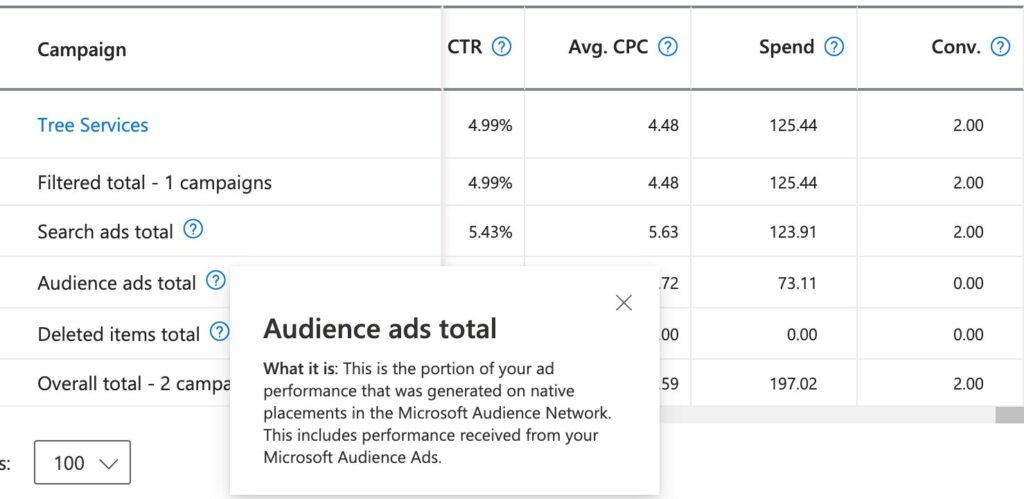
Microsoft Advertising has grown significantly over the last decade, becoming a valuable channel for digital marketers. Although it operates similarly to Google Ads in many ways, it offers distinct features, including Audience Ads, which play a role comparable to Google’s Display Network. Unlike Google Ads, Audience Ads can not be turned off in search campaigns and, in some cases, will spend inefficiently and hurt campaign performance. This post explains tactics you can use to limit the audience ad spending.
Limit Distribution Networks
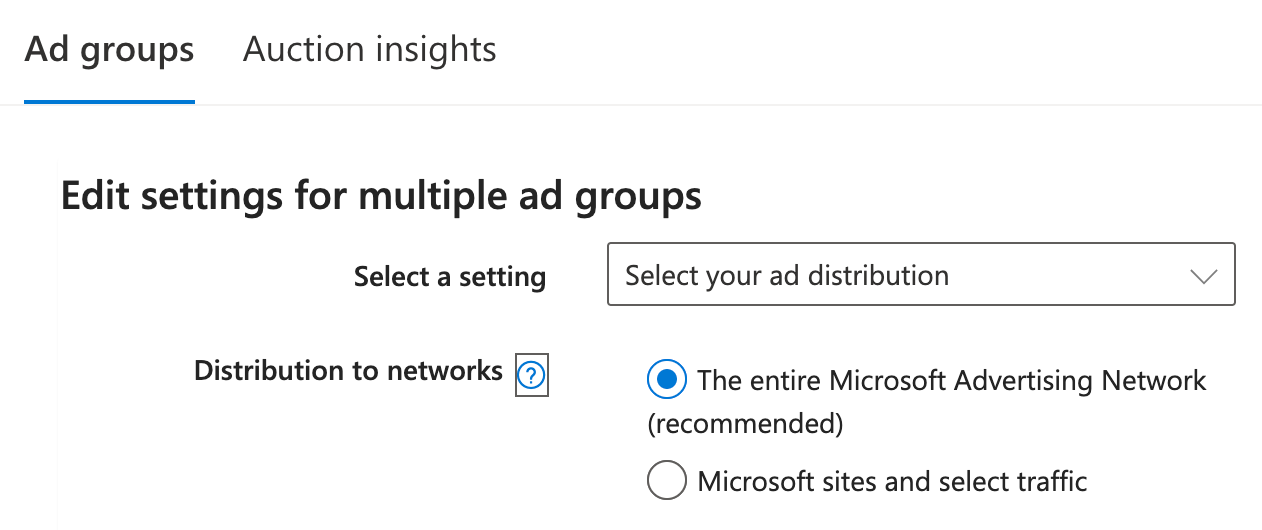 To reduce Audience Ads traffic, you can adjust your ad distribution settings at the ad group level:
- Go to the Campaigns tab and select your campaign.
- Click Ad Groups and choose the ad groups you want to update.
- Click Edit and select Other changes from the dropdown.
- In the Edit Settings For Multiple Ad Groups window, set Select a Setting to Select your ad distribution.
- Change Distribution To Networks to Microsoft sites and select traffic.
- Apply the changes.
The downside of this approach is that you are opting out of Microsoft’s additional search engines, like Yahoo, AOL, and DuckDuckGo.
Exclude Audience Placement Domains
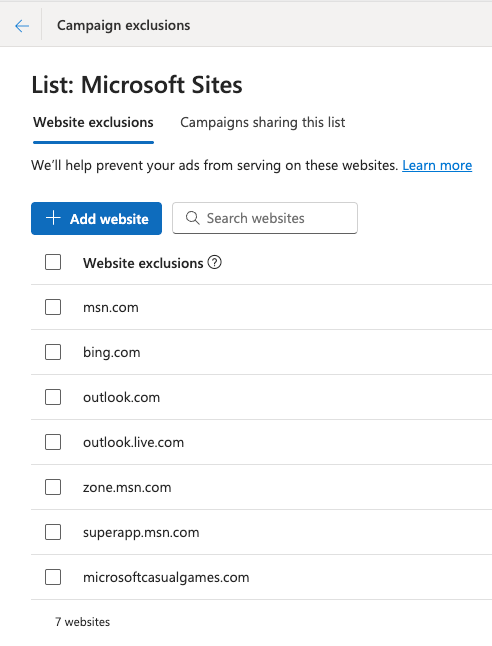 You can also manage placements by adding website exclusions. Add the following domains to your website exclusion list:
- msn.com
- outlook.com
- outlook.live.com
- bing.com
- zone.msn.com
- superapp.msn.com
- microsoftcasualgames.com
For larger account setups, create a shared exclusion list through Tools > Content and Data > Content Suitability, and apply it across multiple Search campaigns for easier management.
Note: To block all traffic from a specific domain, leave off the “www.” prefix. For example, use “website.com” to block traffic from both www.website.com and www2.website.com.

It’s also worth noting that Microsoft can add new domains to the Audience Network over time, so these exclusions won’t stay complete forever. Running a Website URL (Publisher) report periodically under Reporting > Templates > Targeting and Placements is a good habit to catch new placements.

Other Best Practices
It’s also important to separate Audience Ads from Multimedia Ads. While they are often confused, they are different ad types. The Multimedia Ads bid adjustment setting only applies to Multimedia Ads, with a minimum adjustment of 20%, and does not impact Audience Ads spend.
The Best Solution: A Mature Campaign with the Right Budget
Sometimes, higher Audience Ads spend is simply a result of Microsoft trying to maximize spending with your available budget. If you have limited keywords and/or a limited geographical area and set your campaign to max clicks, max conversions, or max conversion value, Microsoft will use audience ads to spend what they can’t spend in search. In this case, you can lower your budget to minimize the audience’s spending.
Once your campaign has trained for a month and achieved 20+ conversions, it will learn that audience ads are not producing conversions and will minimize spend on its own. Most mature campaigns spend less than 3% of the total spending on audience ads. When you set a Target CPA or Target ROAS, you can raise your budget again, and audience spending will remain minimal. At that point, you can also re-enable the additional audience networks to take advantage of Microsoft’s full network of search engines.
In summary, minimizing your audience spending should follow this process when starting Microsoft Ads.
- Limit Distribution Networks
- Add common domain exclusions
- Limit Multimedia Ads
- Adjust your daily budget lower when Audience Ads exceed 10% of your budget
- Run your ads for at least a month and get at least 20 conversions
- Add a target CPA or target ROAS
- Re-enable distribution networks
If you have any questions about Audience Ads on Microsoft or need someone to manage your Microsoft Advertising account, contact us! Boom Visibility has helped many businesses achieve their digital marketing goals, and yours could be next.
-

-
Jess | PPC Manager
Jess is our PPC Manager based in the Philippines, and she brings over 6 years of experience to our team. She has managed a variety of paid ad accounts across industries, including e-commerce and pharmaceutical clients. Her deep understanding of paid search strategy allows her to deliver measurable results that help clients achieve their goals.
Outside of work, Jess enjoys spending time with her 3 adorable Dachshund Yorkie mixes and exploring new destinations (Japan is her favorite). She’s also known to hold her own at karaoke nights. Whether she’s fine-tuning a campaign or planning her next adventure, Jess brings the same enthusiasm and attention to detail to everything she does.